Amazon
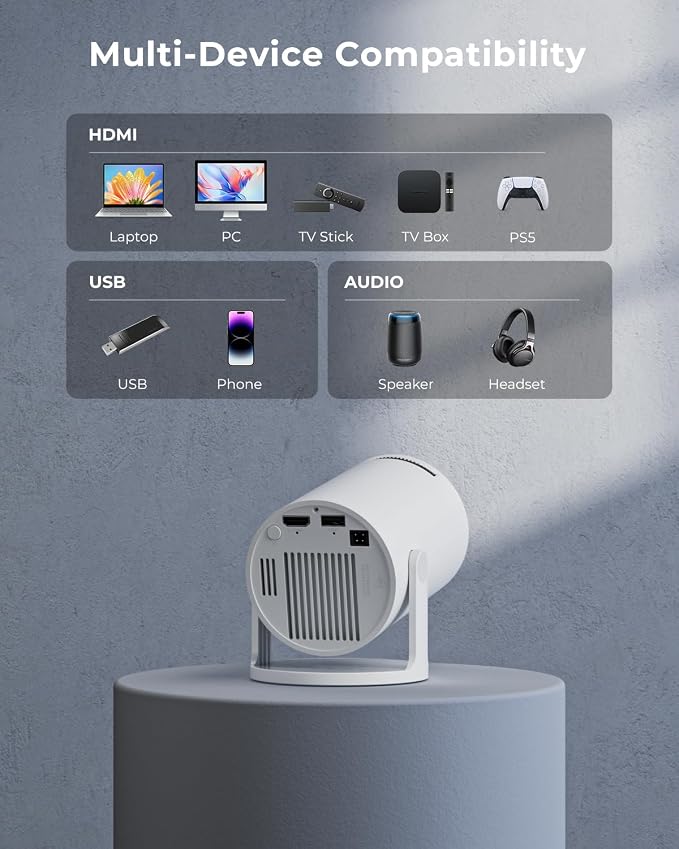
Mini Projector, Portable Projector with Wifi and Bluetooth, Built in Apps | Support 4K 1080P, 180° Rotation, Auto Keystone, Movie Projector Compatible With HDMI/USB/TV Stick/Smartphone/Laptop
Mini Projector, Portable Projector with Wifi and Bluetooth, Built in Apps | Support 4K 1080P, 180° Rotation, Auto Keystone, Movie Projector Compatible With HDMI/USB/TV Stick/Smartphone/Laptop
Couldn't load pickup availability
- 【Built-in WiFi & Bluetooth Projector with Apps】Dual-band WiFi 2.4G + 5G ensures fast and stable wireless streaming. Bluetooth 5.2 supports speakers and headphones. Built-in apps like YouTube, Prime Video and Disney+ are supported, and the projector is compatible with TV sticks (not included) to access a wide range of streaming content and enjoy massive video libraries, making it a perfect movie projector.
- 【HD Projection, Supports 4K Video Playback & Stereo Sound】Supports 4K video playback via USB drive for smooth viewing. High-quality optical lens delivers clear images and is scratch-resistant and easy to clean. Built-in stereo speakers provide clear sound for movies, TV shows, and casual gaming, ideal for use as a phone projector.
- 【Dynamic Starry Sky Mode & 180° Rotatable Design】Activate the dynamic Starry Sky Mode with one-touch control on the remote. Featuring 9 animated starry sky scenes and a built-in sleep timer, the projector for bedroom displays dynamic star patterns on the ceiling to create a calming bedtime atmosphere for kids. The 180° rotatable design lets you easily adjust the angle for wall or ceiling projection.
- 【Auto Keystone, Dual Focus & Big Screen Projection】Supports auto and manual focus for fast and precise image adjustment. Auto vertical keystone correction delivers a perfectly aligned image in seconds. The 0.9:1 short throw ratio enables big-screen projection in small spaces, supporting 30–200 inch screen sizes (recommended 40–100 inches).
- 【 Ultra-Portable Mini Projector for Indoor & Outdoor】Weighs only 0.77 lb (0.35 kg) with a compact size of 3.73 × 3.73 × 6.17 inches. Easy to carry in a backpack—perfect for camping, travel, dorm rooms, bedroom, outdoor movie nights, and small apartments.
Product description


- Chapters
- descriptions off, selected
- Captions off, selected
- default, selected
This is a modal window.
mini projector with wifi and bluetooth


Quick Start Video Guide
-
How to Connect Wi-Fi?
- Go to Wi-Fi
- Select your Wi-Fi network and enter the password
- Wait 3–5 seconds
- The Wi-Fi icon on the Home screen turns green when connected
The video showcases the product in use.The video guides you through product setup.The video compares multiple products.The video shows the product being unpacked.Video Player is loading.Click to play videoPlayMuteCurrent Time 0:00/Duration 0:31Loaded: 9.69%0:00Seek to live, currently behind liveLIVEStream Type LIVERemaining Time -0:311xPlayback RateChapters- Chapters
Descriptions- descriptions off, selected
Captions- Captions off, selected
- English (Automated)
Audio TrackFullscreen- default, selected
This is a modal window.
How to Connect Wi-Fi?
-
How to Connect iPhone to Projector (Wireless & Wired)
Two quick connection methods:
Wireless: Same Wi-Fi → Open ScreenCast on projector → Tum on screen mirroring on phone.
Wired: Use HDMI adapter (not included) → Select HDMI input → Enable phone mirroring.
(Note:Due to app HDCP copyright protection, screen mirroring (Miracast/AirPlay) may cause black screen or sound only when streaming videos. For best experience, please use Fire Stick, Roku, or connect a laptop/PC.)
The video showcases the product in use.The video guides you through product setup.The video compares multiple products.The video shows the product being unpacked.Video Player is loading.Click to play videoPlayMuteCurrent Time 0:00/Duration 1:11Loaded: 4.23%0:00Seek to live, currently behind liveLIVEStream Type LIVERemaining Time -1:111xPlayback RateChapters- Chapters
Descriptions- descriptions off, selected
Captions- Captions off, selected
- English (Automated)
Audio TrackFullscreen- default, selected
This is a modal window.
How to Connect iPhone to Projector?
-
How to Connect Laptop & Projector?
1. Connect your laptop to the projector using the included HDMI cable. (For laptops without an HDMI port, use a USB-C/Thunderbolt adapter or dock.)
2. Press Input and select HDMI.
3. Wait 3–5 seconds for the connection.
4. Press Win + P (Windows) or Cmd + F1 (Mac) to choose Duplicate or Extend mode.
The video showcases the product in use.The video guides you through product setup.The video compares multiple products.The video shows the product being unpacked.Video Player is loading.Click to play videoPlayMuteCurrent Time 0:00/Duration 0:26Loaded: 11.55%0:00Seek to live, currently behind liveLIVEStream Type LIVERemaining Time -0:261xPlayback RateChapters- Chapters
Descriptions- descriptions off, selected
Captions- Captions off, selected
- English (Automated)
Audio TrackFullscreen- default, selected
This is a modal window.
How to Connect Laptop & Projector?
-
Check Your Time Zone for Smooth App Access (YouTube Example)
- Go to Settings → Date & Time and turn on Automatic Time.
- Reopen YouTube and try again.
The video showcases the product in use.The video guides you through product setup.The video compares multiple products.The video shows the product being unpacked.Video Player is loading.Click to play videoPlayMuteCurrent Time 0:00/Duration 0:53Loaded: 5.67%0:00Seek to live, currently behind liveLIVEStream Type LIVERemaining Time -0:531xPlayback RateChapters- Chapters
Descriptions- descriptions off, selected
Captions- Captions off, selected
- English (Automated)
Audio TrackFullscreen- default, selected
This is a modal window.
Check time zone
-
Set Up Screen Mirroring (iPhone Example)
- On the projector, open ScreenCast and make sure it shows “Activated” (top right).
- Connect the projector to Wi-Fi: go to Wi-Fi, enter the password, and wait until the home screen Wi-Fi icon turns green.
- On your phone, connect to the same Wi-Fi network as the projector.
- Open Screen Mirroring / Cast / Share Screen on your phone and select the projector. (Note:Due to app HDCP copyright protection, screen mirroring (Miracast/AirPlay) may cause black screen or sound only when streaming videos. )
The video showcases the product in use.The video guides you through product setup.The video compares multiple products.The video shows the product being unpacked.Video Player is loading.Click to play videoPlayMuteCurrent Time 0:00/Duration 0:52Loaded: 5.78%0:00Seek to live, currently behind liveLIVEStream Type LIVERemaining Time -0:521xPlayback RateChapters- Chapters
Descriptions- descriptions off, selected
Captions- Captions off, selected
- English (Automated)
Audio TrackFullscreen- default, selected
This is a modal window.
Screen Mirroring Setup (iPhone Example)